Installing OpenMRSLab
Step 1. Download and Install Docker
Mac
- Download and install Docker Desktop for Mac.
- Download link: https://www.docker.com/products/docker-desktop
- Installation guide: https://docs.docker.com/docker-for-mac/install/
Windows
- Download and install Docker Desktop for Windows.
- Download link: https://www.docker.com/products/docker-desktop
- Installation guide for Windows 10 Pro, Enterprise, and Education: https://docs.docker.com/docker-for-windows/install/
- Installation guide for Windows 10 Home: https://docs.docker.com/docker-for-windows/install-windows-home/
Linux
- Install Docker Engine (which includes Docker CLI) for your Linux distribution).
Step 2. Pull OpenMRSLab Image from Docker Hub
- In Terminal (Mac and Linux) or Command Prompt (Windows), enter the command:
docker pull openmrslab/openmrslab. 
- In Terminal (Mac and Linux) or Command Prompt (Windows), enter the command:
- (Optional) Confirm that the OpenMRSLab image has been downloaded by entering the command:
docker image ls. 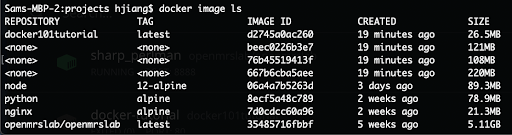
- openmrslab/openmrslab should be listed under the REPOSITORY column.
- (Optional) Confirm that the OpenMRSLab image has been downloaded by entering the command:
Step 3. Run and Access OpenMRSLab Container
- To create a container from the OpenMRSLab image and start it on your machine, open Terminal and enter the command:
docker run -p 8888:8888 -v [PATH TO DATA]:/home/jovyan/work openmrslab/openmrslab. 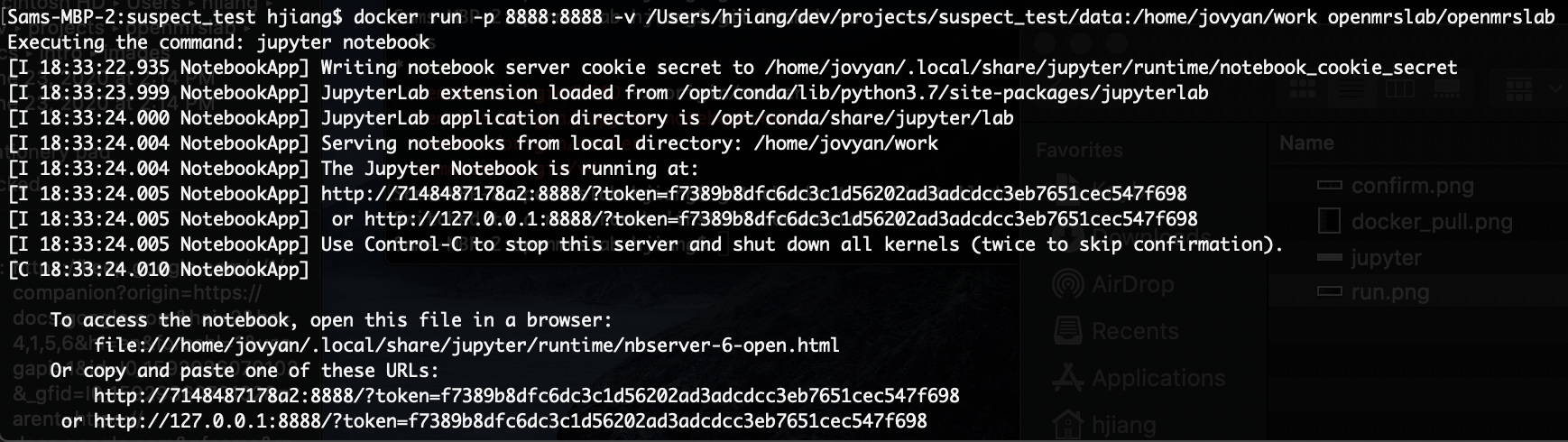
- The -p option specifies that the container will run on port 8888 within the container and be accessible from port 8888 on your machine.
- The -v option maps a drive on your computer to the /home/jovyan/work directory in the container, which is the root directory. Replace [PATH TO DATA] with the absolute path to your directory (do not use a relative path). This is usually the directory that contains the data you want to process and will be where the resulting Jupyter Notebook is saved.
- To create a container from the OpenMRSLab image and start it on your machine, open Terminal and enter the command:
- Access the Jupyter Notebook.

- Access the notebook by copying and pasting the last URL in the terminal output (e.g.
http://127.0.0.1:8888/?token=9a9...e06) into a browser, or by going to http://localhost:8888/ and entering the generated token. - A new token is generated each time you start a container so make sure you take note of the new key/URLs in the Terminal output. The token can be found in the listed urls, indicated by ?token=.
- Access the notebook by copying and pasting the last URL in the terminal output (e.g.